![[logo] ShipNerd - Ship smarter!](https://www.shipnerd.com/support/wp-content/uploads/2024/02/logo_4x.svg)
Support Home > Import & Export Shipping >
ShipNerd’s Export Documents Library
Uploading blanket customs documents makes export shipping easier than ever with ShipNerd! Follow the simple steps below to securely upload your blanket customs documents to ShipNerd for use with future shipments.
Step One: Open the Document Library
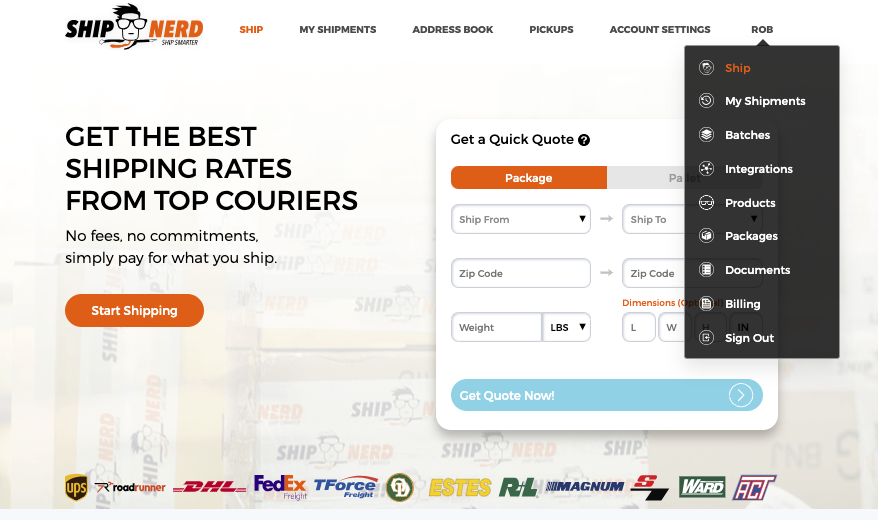
Click your username in the top right of ShipNerd and then select “Documents”.
Step Two: Select Upload Document
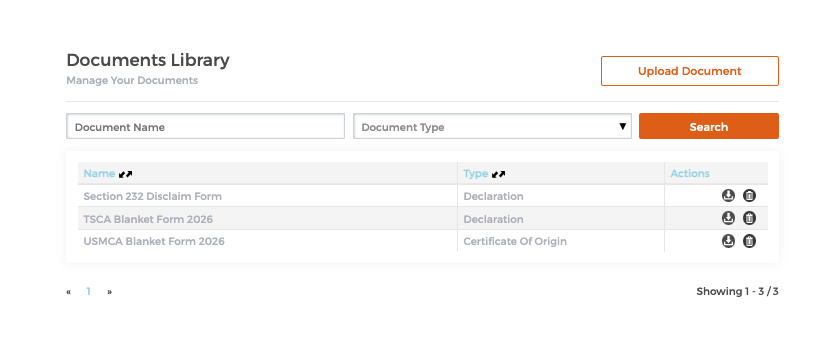
Within the Documents Library, click “Upload Document” in the top right of the screen.
Step Three: Uploading blanket documents and declarations
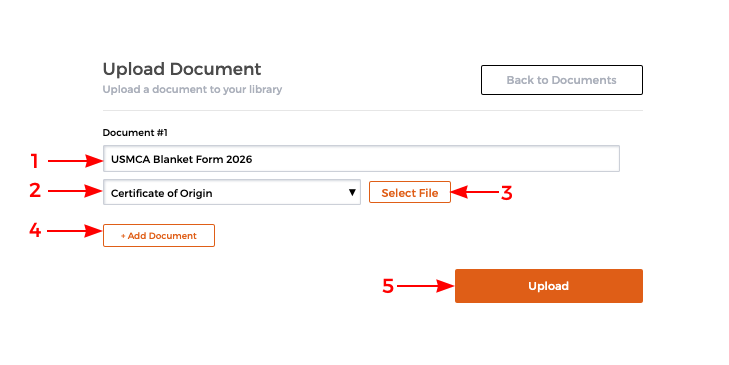
- 1: Enter the name you want the document to appear as when selecting documents
- 2: Select the type of document you are uploading (e.g., Certification of Origin, Declaration, etc.)
- 3: Select the file you wish to upload to ShipNerd
- 4: (Optional) Add another document you’d like to upload
- 5: Upload the file(s) to the Document Library
Adding Documents to your Shipments
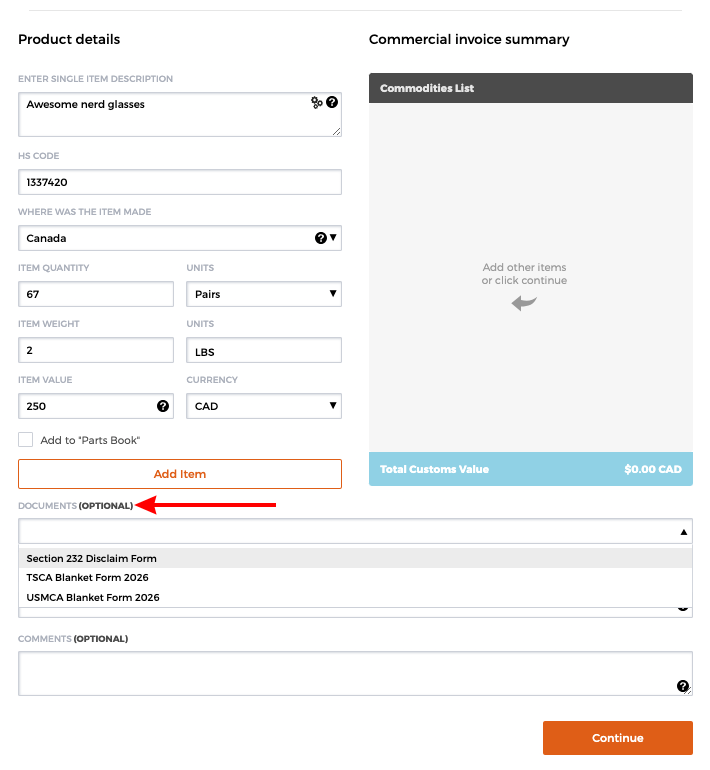
During Step 3 of creating an export shipment, when entering details for the Commercial Invoice, you will now see an option stating “Documents (Optional)”. When clicking the drop-down, you can select documents you’d like to include from your documents library. These will then be added to your shipment and transmitted to the courier once the label is purchased – electronically. It’s important to note that the commercial invoice is always transmitted electronically, this does not need to be uploaded manually.